The Features &
Mastery Guide
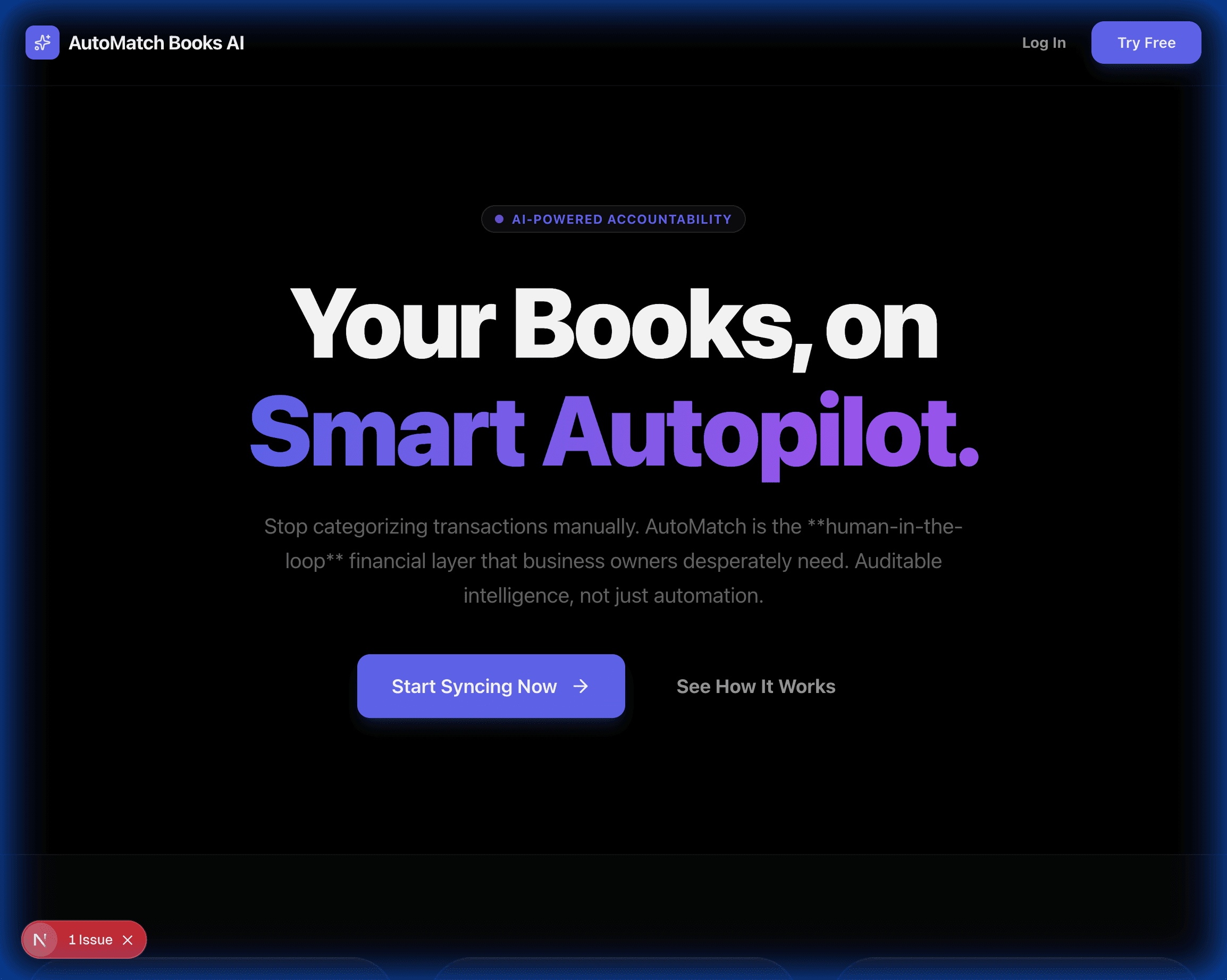
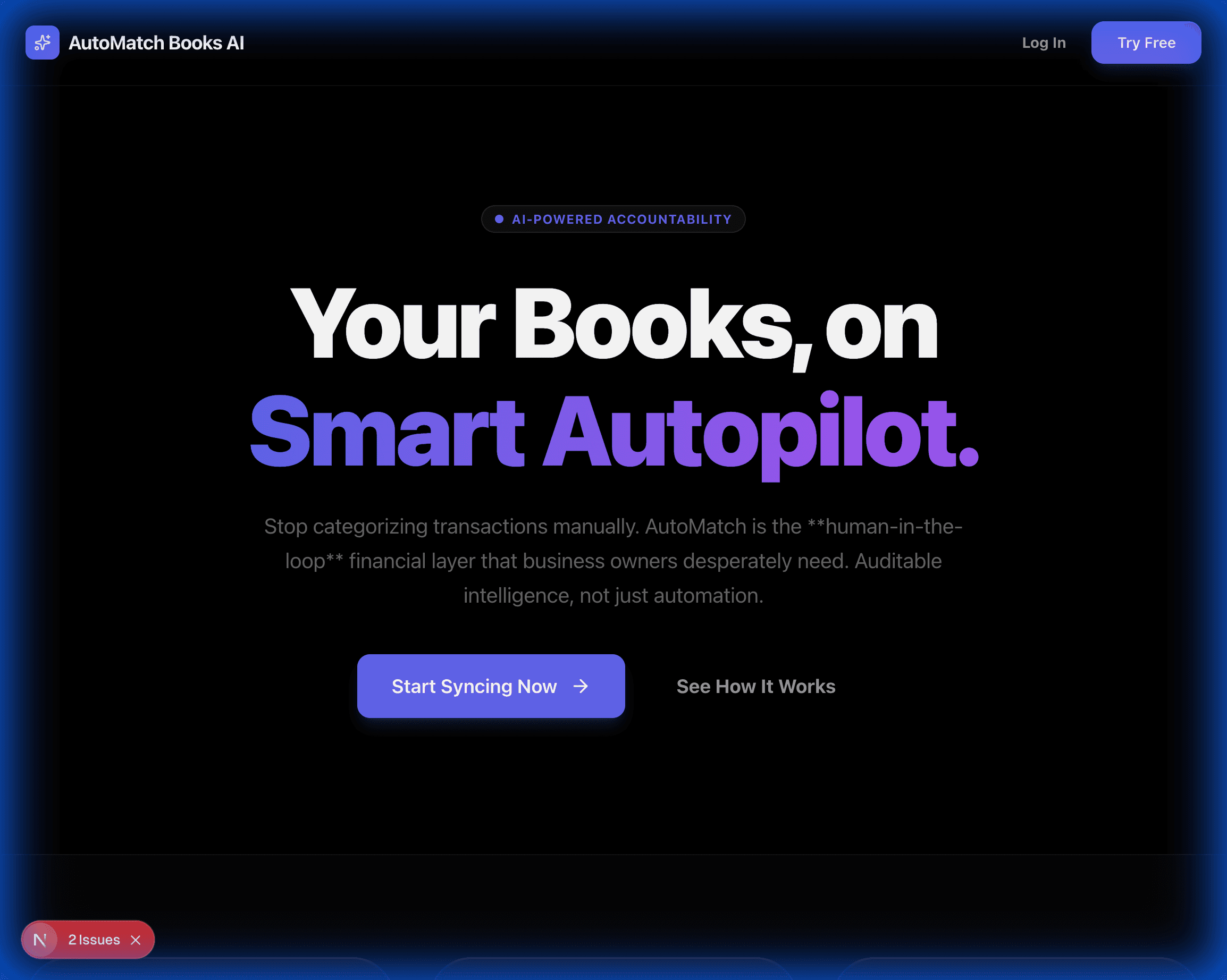
Your Books, on Smart Autopilot. Experience the power of Auditable Intelligence.
The Trust Bridge
Why we're the human-in-the-loop layer business owners desperately need.
The "Black Box" Problem
Most AI tools are "black boxes"—they do the work in the dark, and you just hope it's right. They guess, get it wrong, and leave you to clean up a forensic mess in your books.
The Magical Mirror Solution
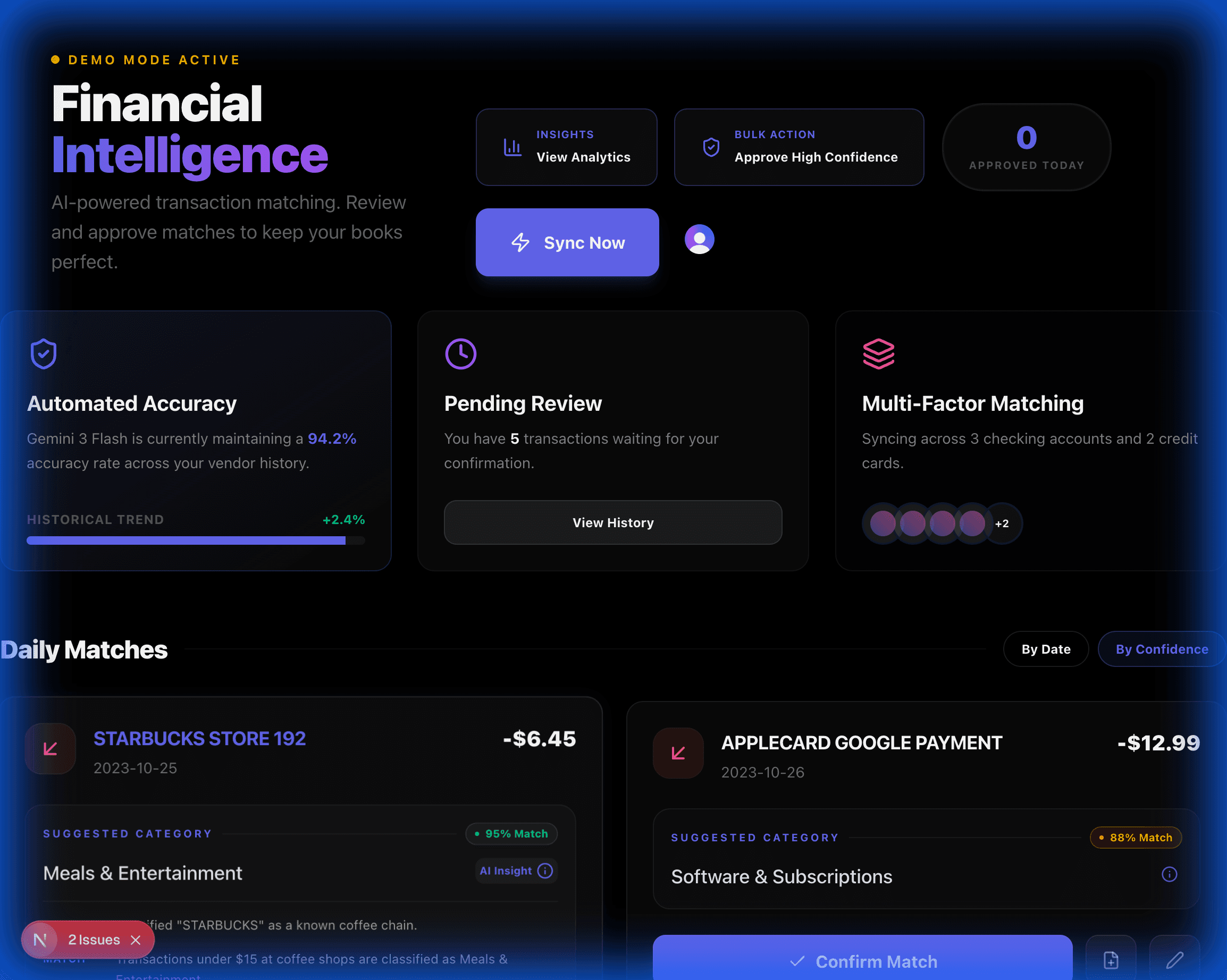
AutoMatch isn't just automation; it's auditable intelligence. The AI explains its logic for every single transaction before you click "Agree". We provide the trust bridge missing in fintech.
“Existing tools are black boxes—they guess, get it wrong, and leave you to clean up the mess. Your concept of 'Explainable AI' is the trust bridge missing in fintech.”
The Designer's Vision
Design Directives for maintaining the "Magical Mirror" aesthetic.
Glassmorphism v3
Apply 'backdrop-blur-xl' with a 'bg-white/5' tint. All cards MUST have a 1px 'border-white/10' to simulate light refraction on glass edges.
Kinetic UX
Use Framer Motion 'layout' prop for list reordering. Approved transactions should animate with a 'x: 100, opacity: 0' exit transition.
Confidence Palette
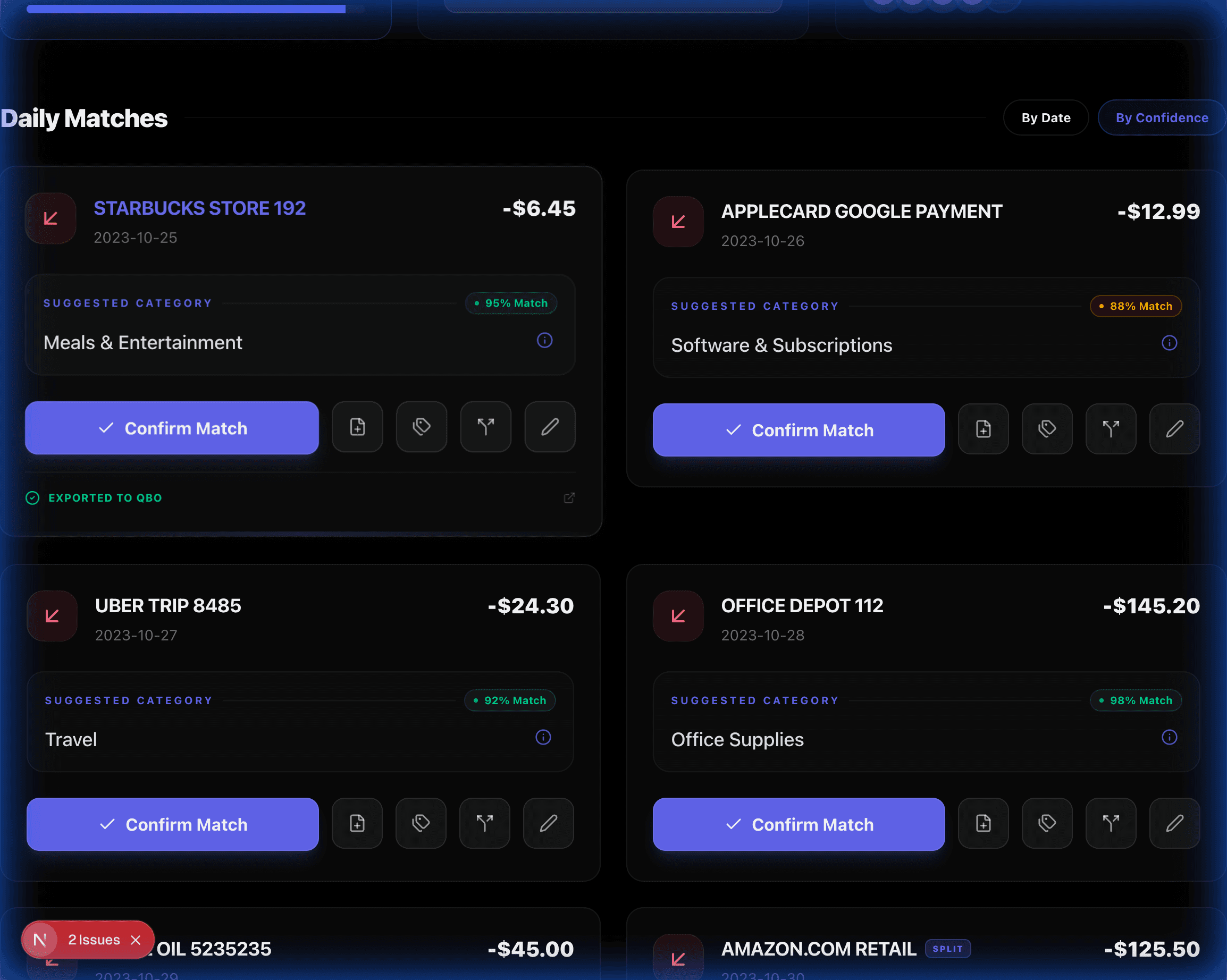
Strict color tokens: Green (#10b981) for >85% confidence, Amber (#f59e0b) for 50-85%, and Rose (#f43f5e) for anomalies.
The Builder's Engine
Technical specifications for the sync and AI matching core.
Mirror Database logic
Multi-Tenant Isolation
All tables leverage realm_id indexing. Row Level Security (RLS) ensures that even in shared clusters, a user's transactions are mathematically isolated.
Optimistic Sync
Frontend uses SWR or React Query to update the mirror database in ~150ms, then background workers push to QuickBooks asynchronously.
AI Prompt Engineering
Explainable Reasoners
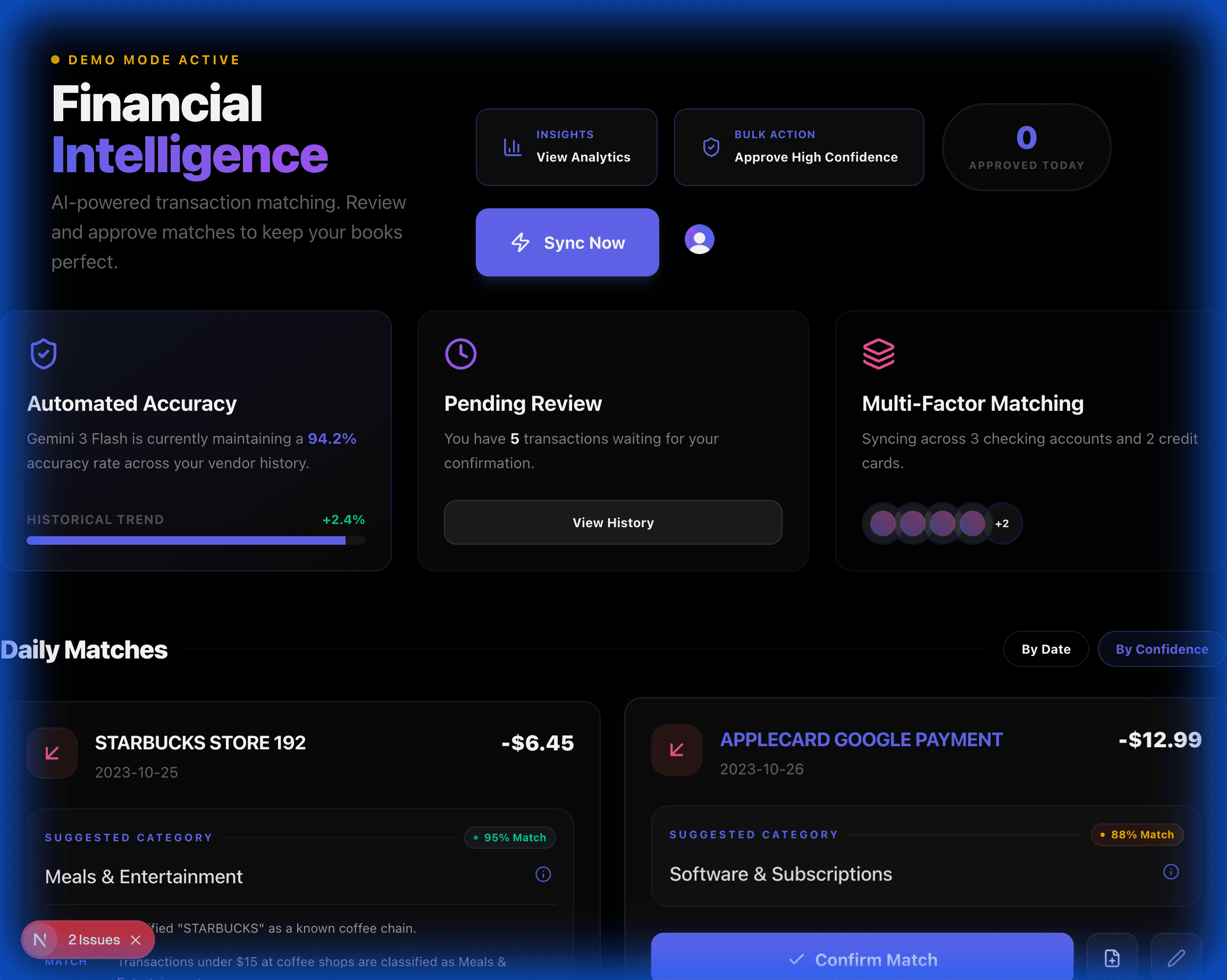
The AI doesn't just categorize; it explains. "I categorized this as 'Job Materials' because the vendor is Home Depot." This turns automation into validation.
Core Capabilities
Superior Analytics & Tags
The tag system and analytics QuickBooks wish they had. Know exactly where your money is going with multi-dimensional filtering and trend analysis.
Automated Splitting
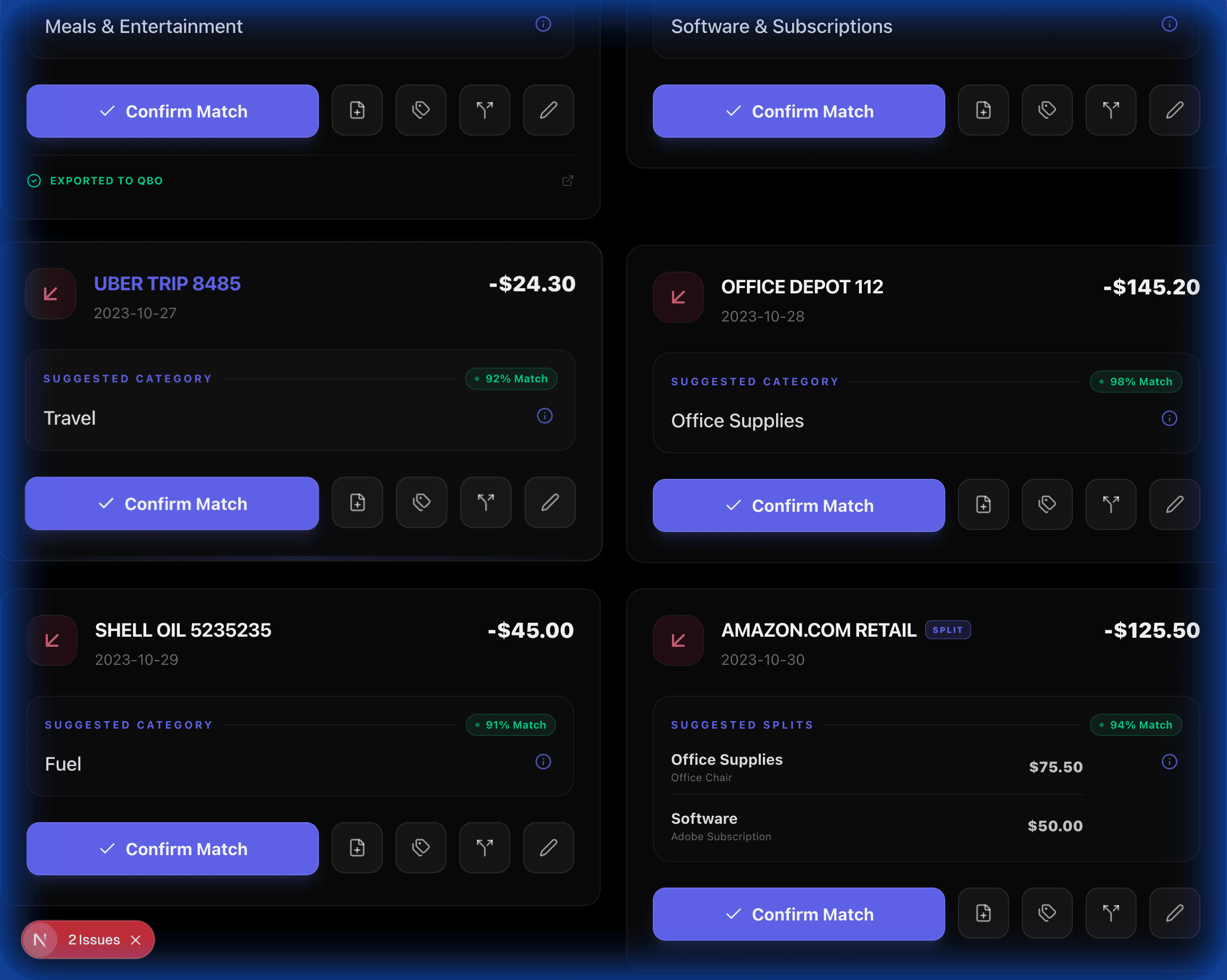
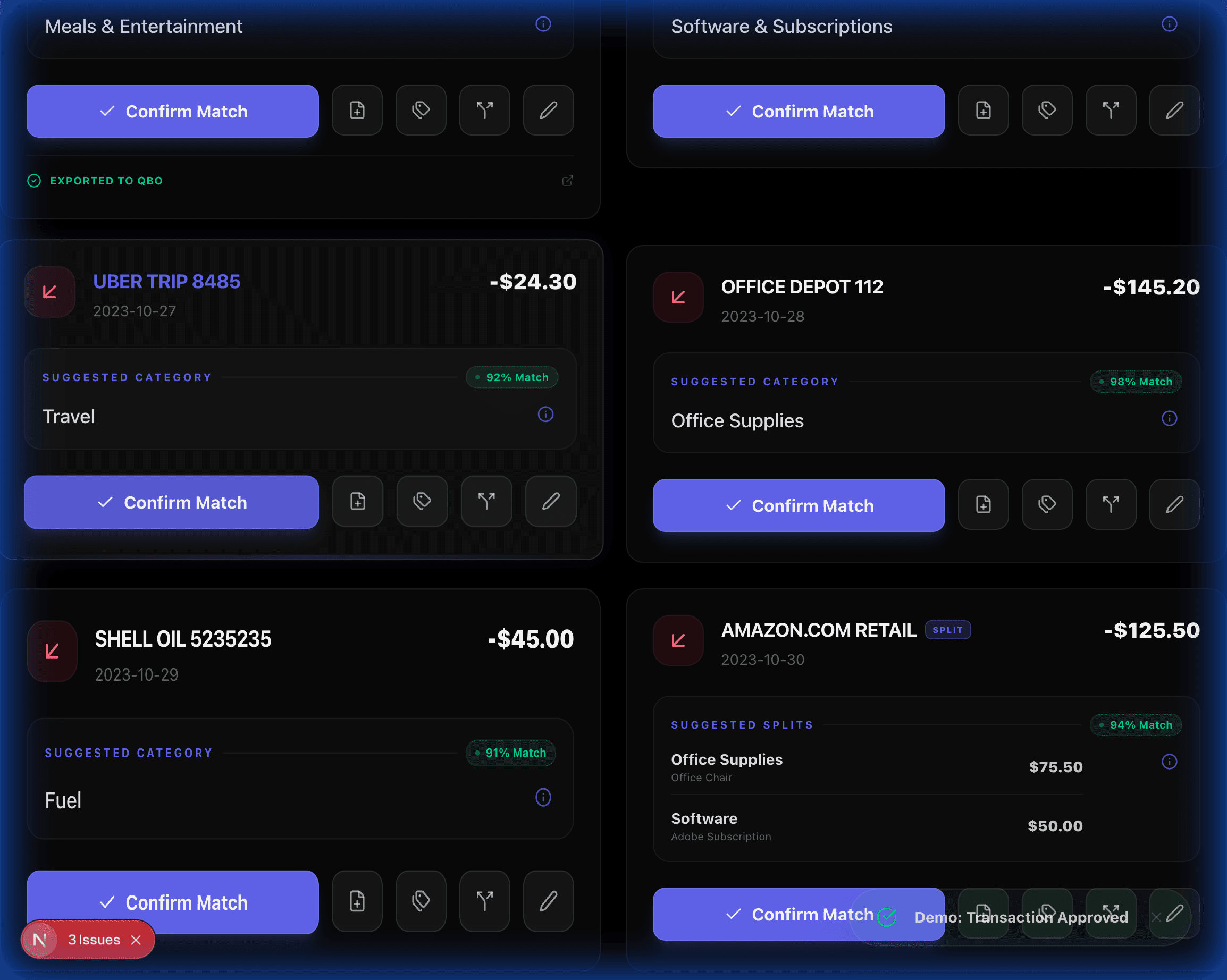
AI detects receipts representing multiple departments. A $200 Target transaction is automatically split into 'Office Supplies' and 'Software' based on itemized logic.
Receipt Mirroring
Upload a photo; the engine matches it to a bank feed entry in milliseconds using fuzzy-matching on date, amount, and vendor name.
Mobile Haptics
Building for the field. Capacitor integration provides physical feedback (haptics) on every successful reconciliation.
Tester's A-Z Manual (15-Step Walkthrough)
Follow these exact, simple steps to experience the full power of the platform.
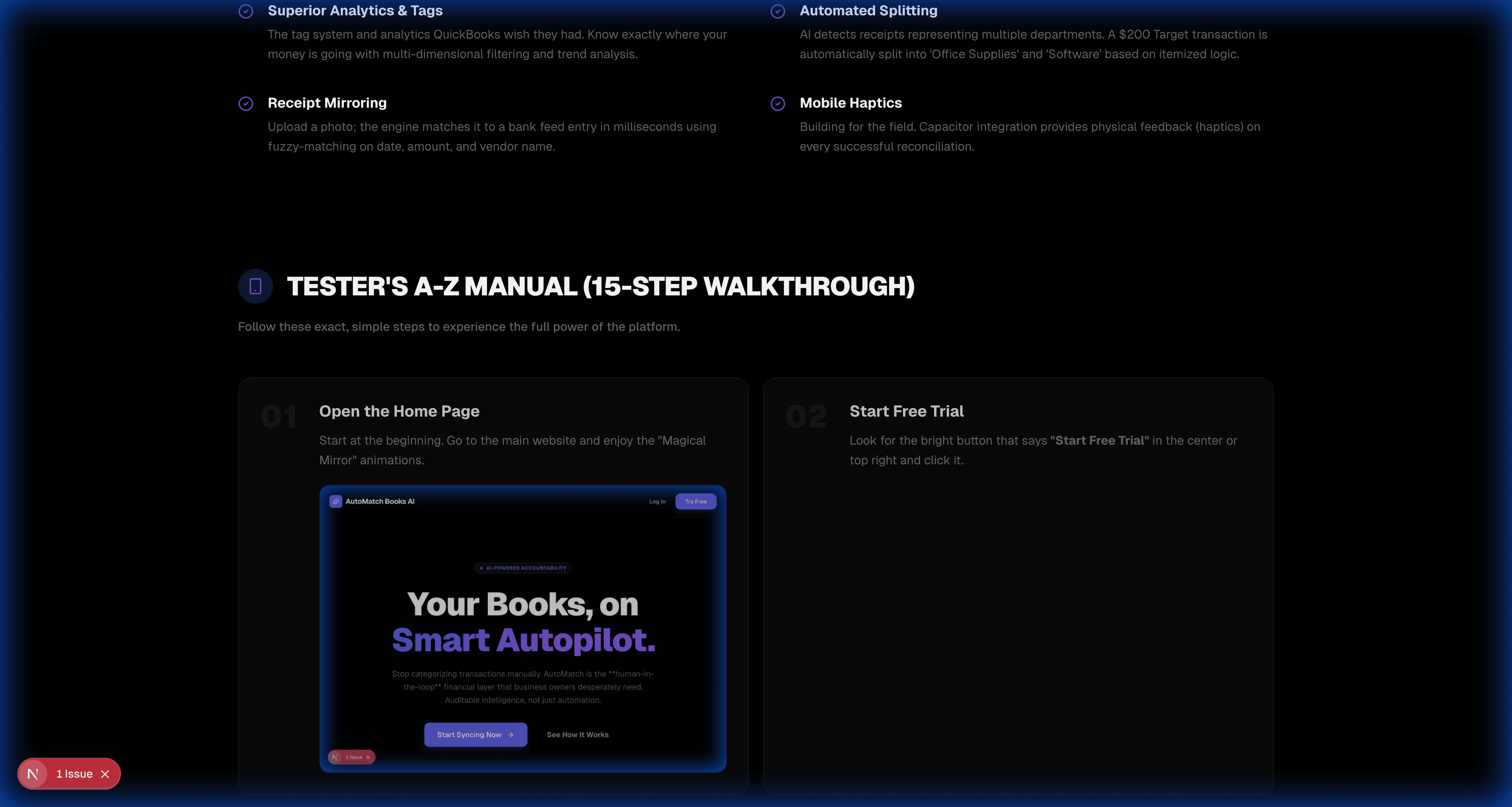
Open the Home Page
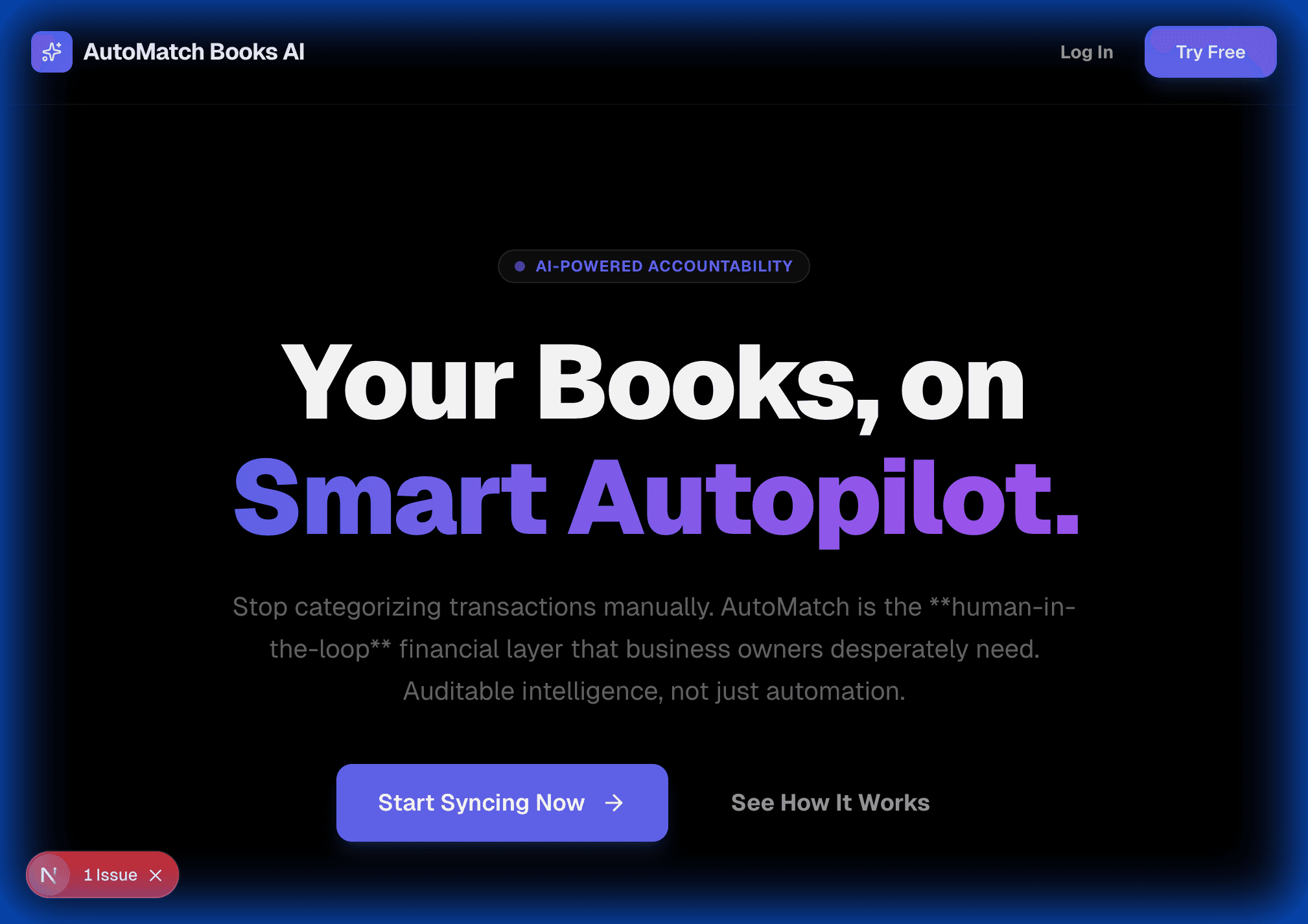
Start Free Trial
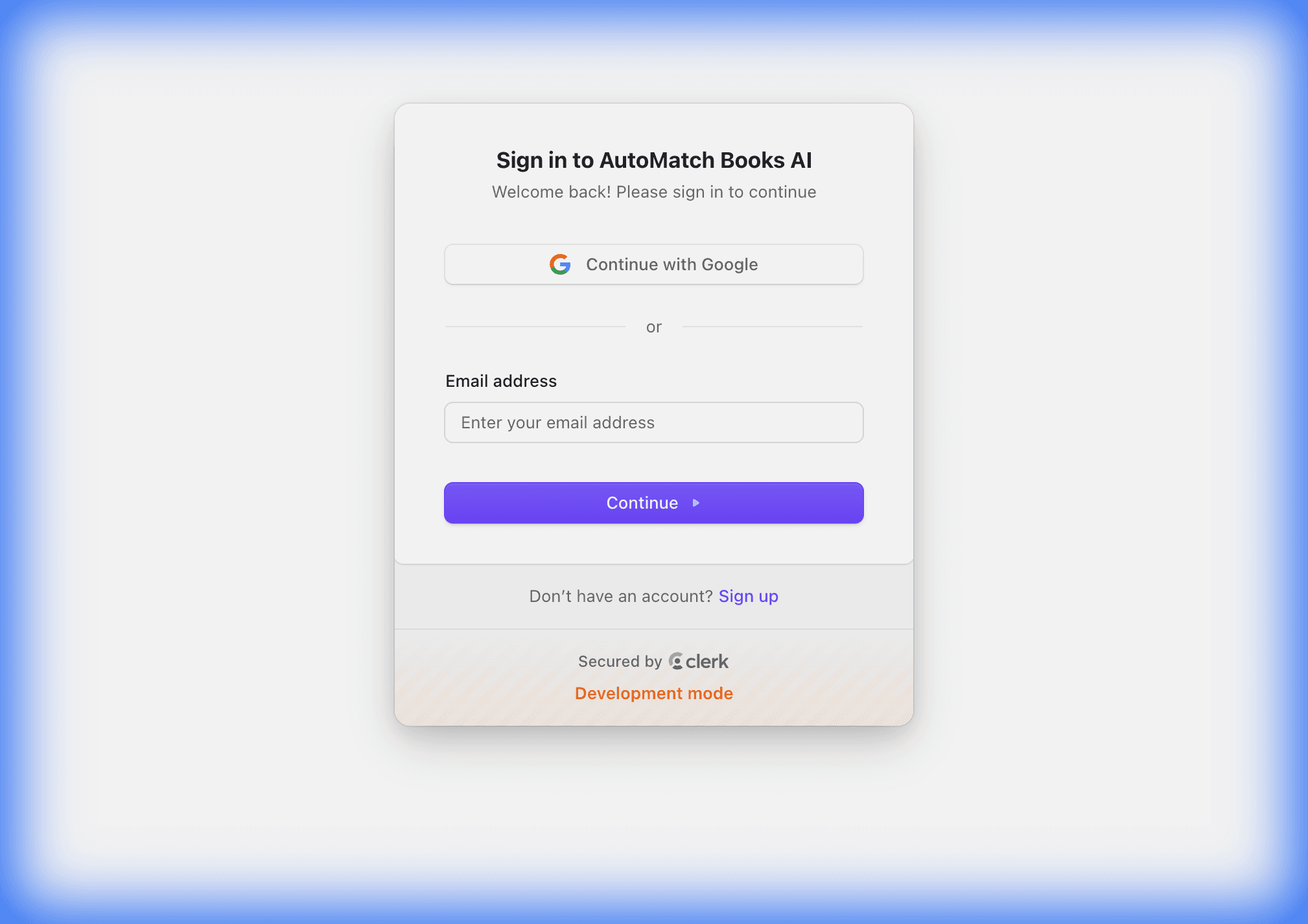
Create Your Identity
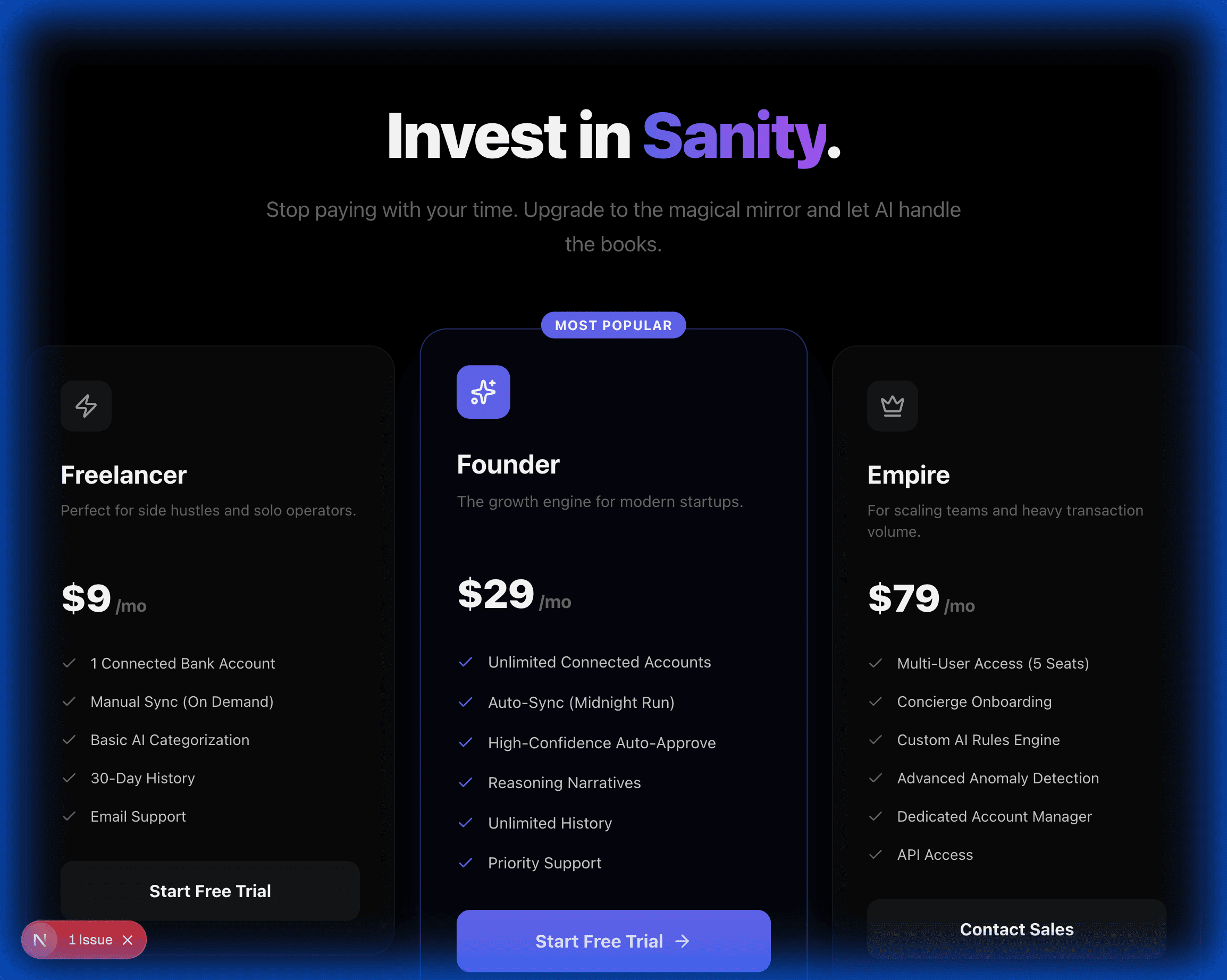
The Pricing Menu
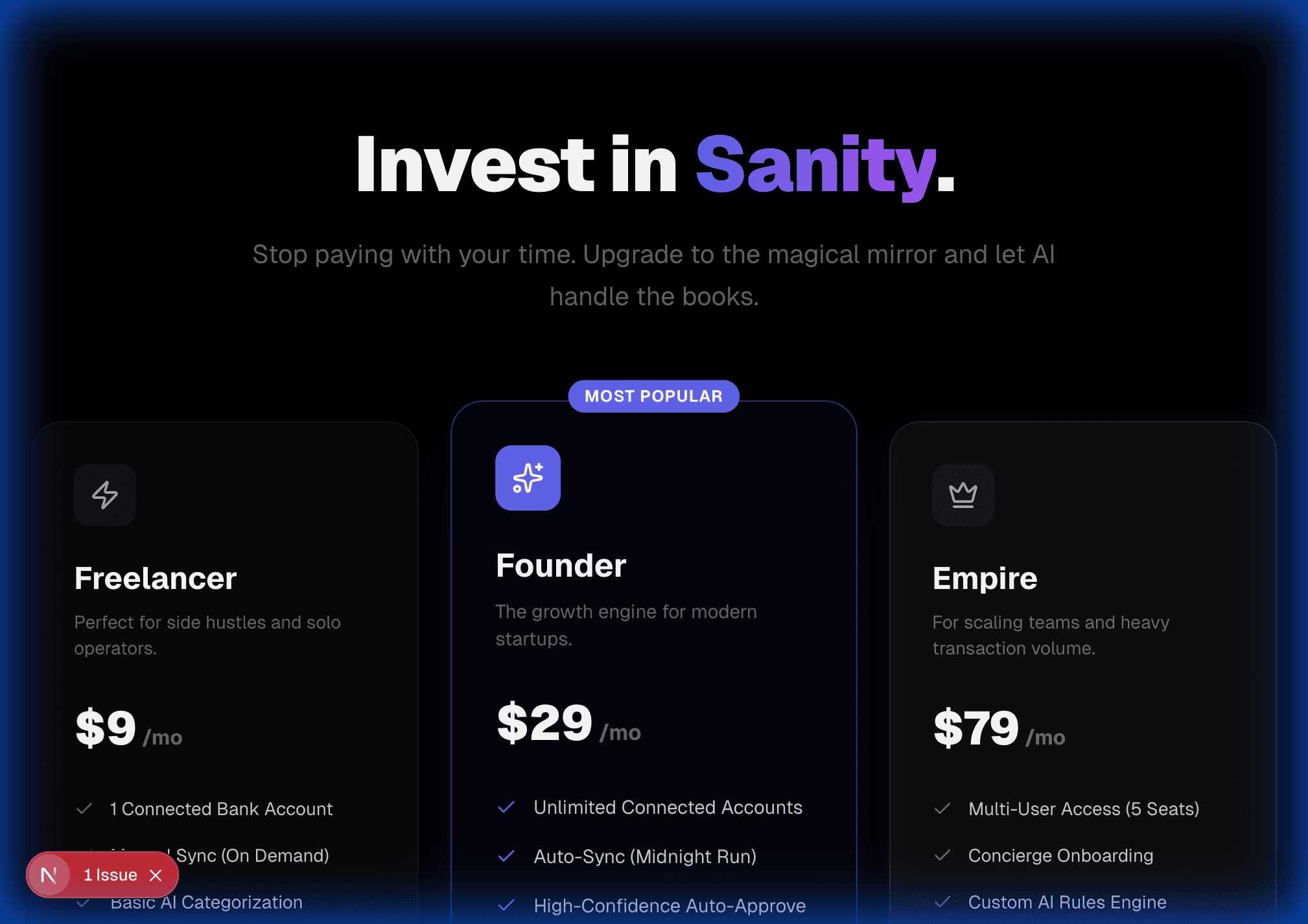
Pick the 'Founder' Plan
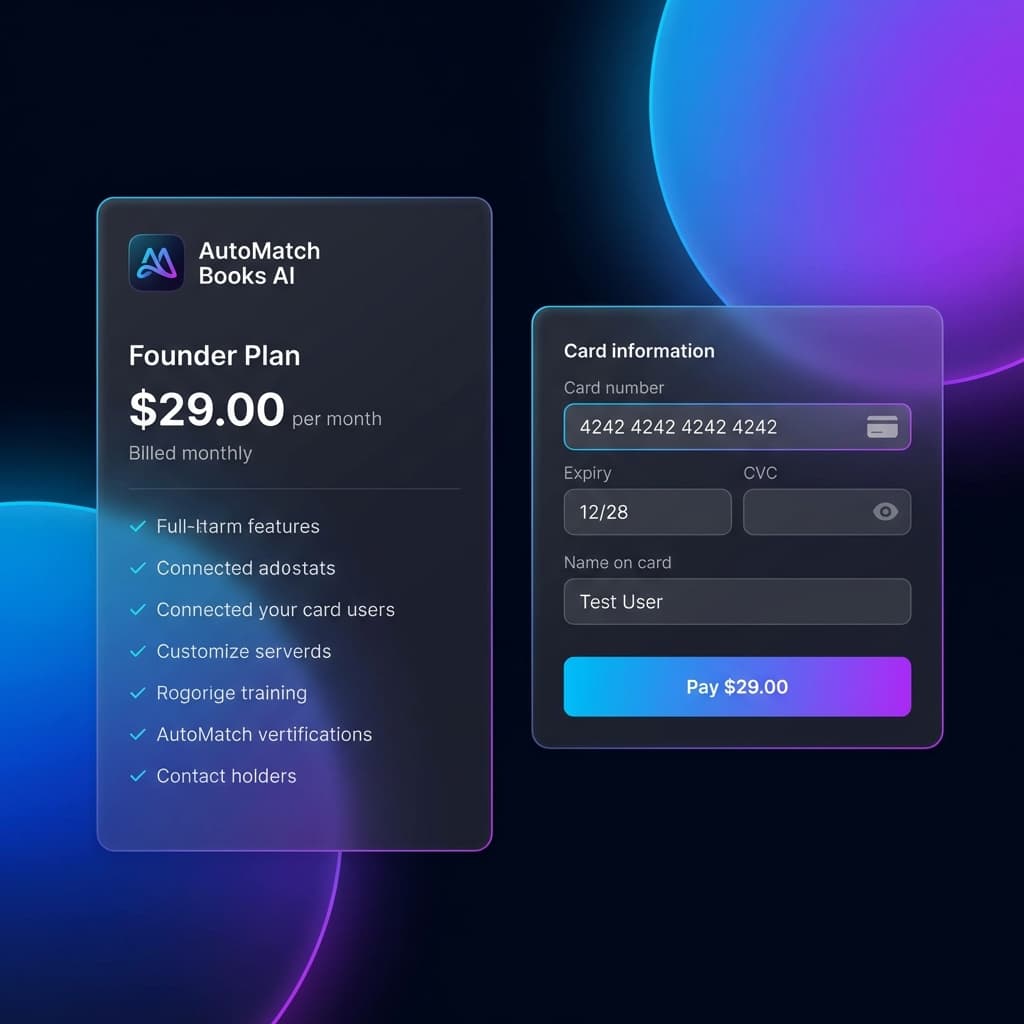
Enter Test Card Details
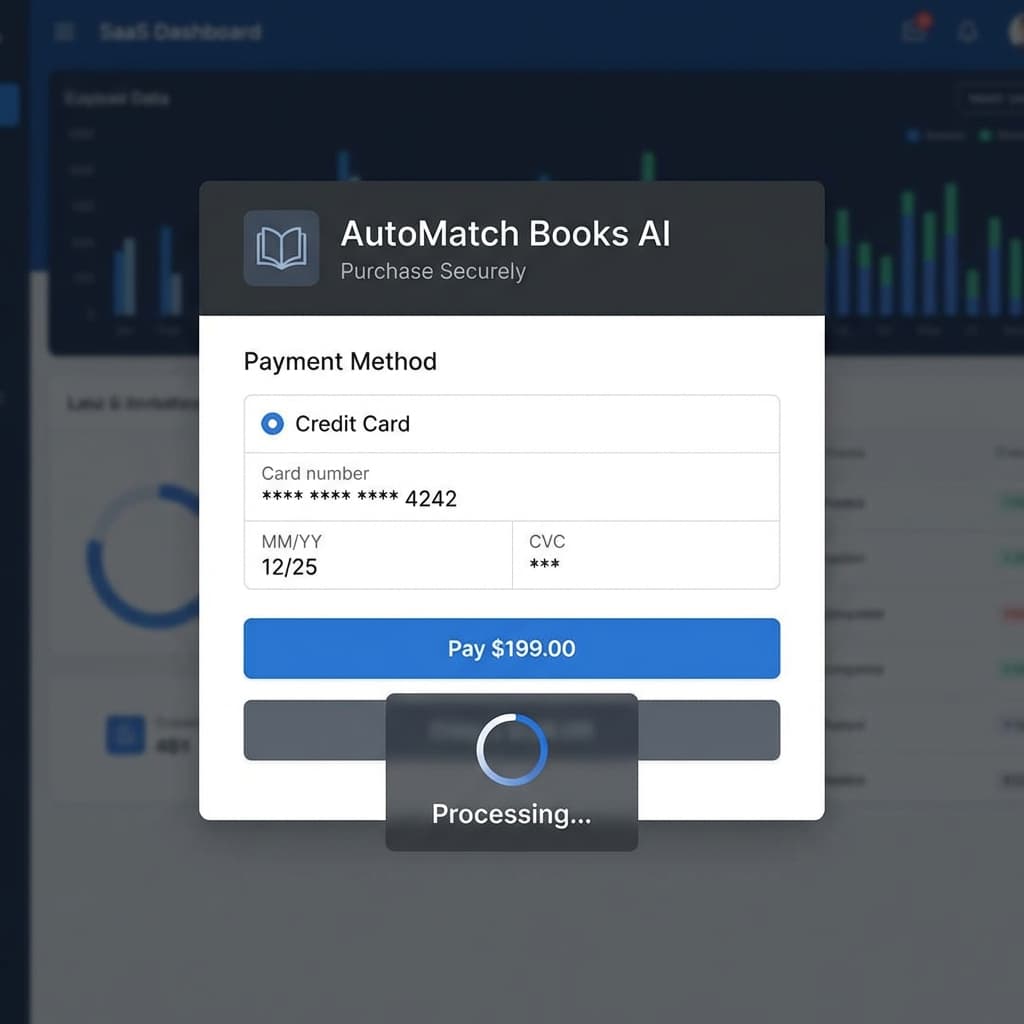
Finish Payment Test
Land on the Dashboard
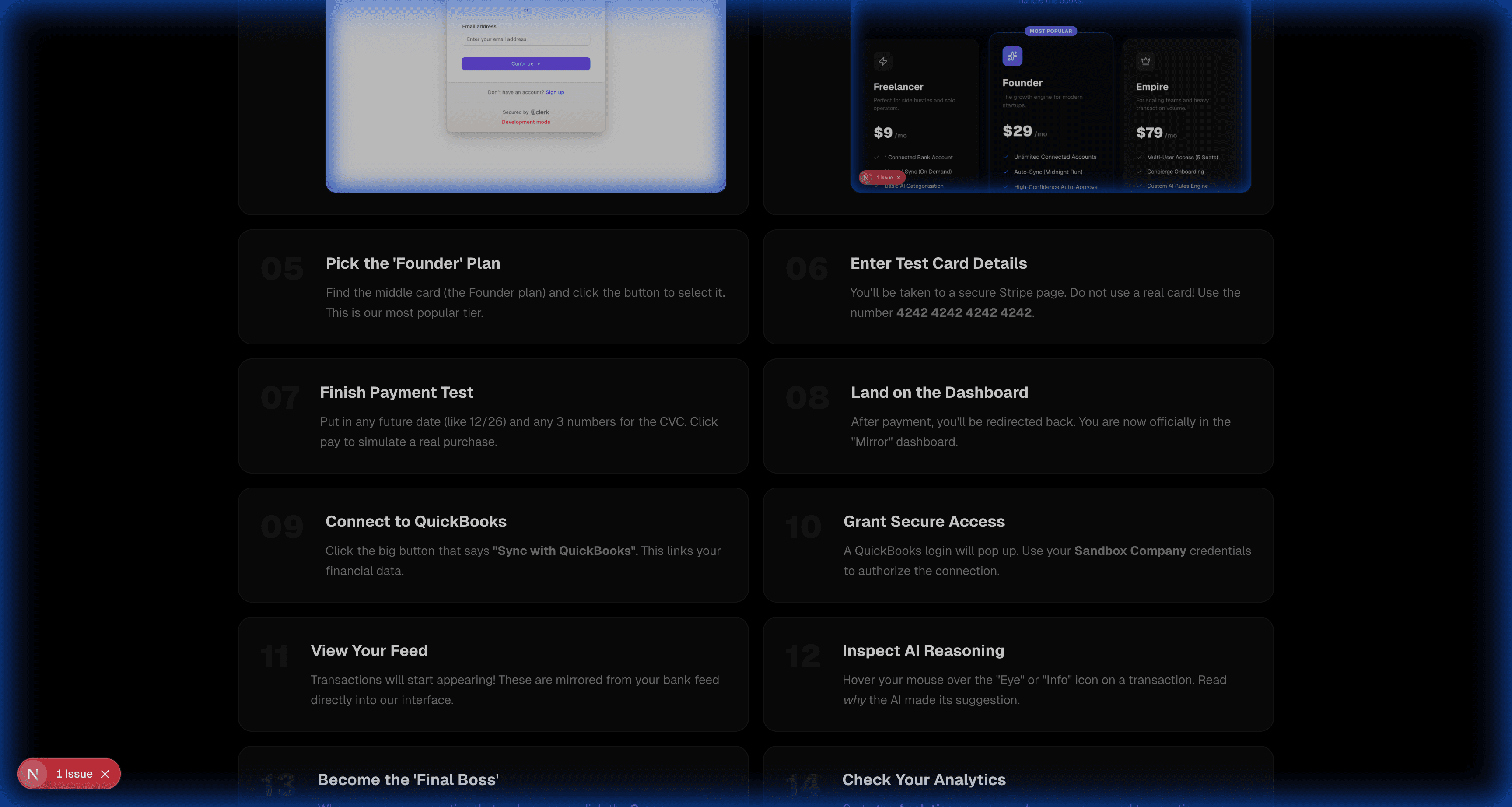
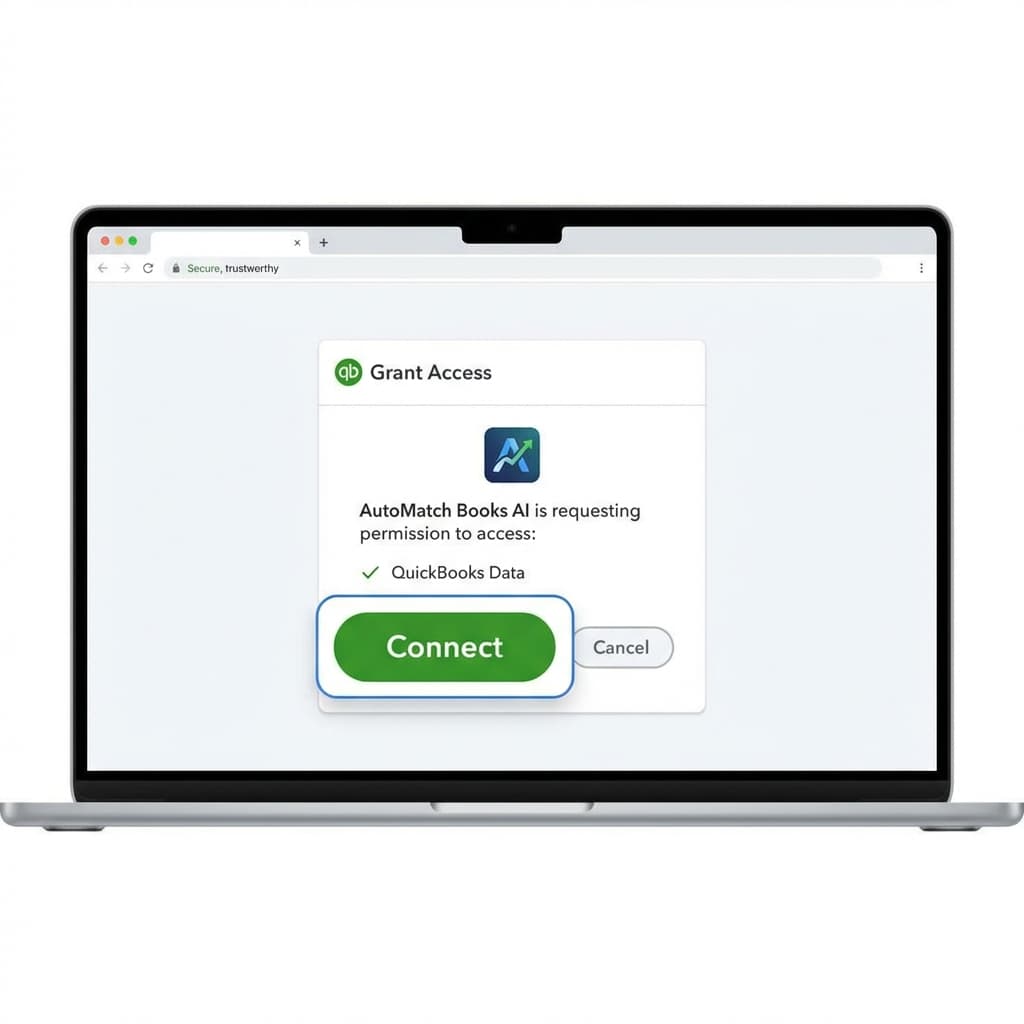
Connect to QuickBooks
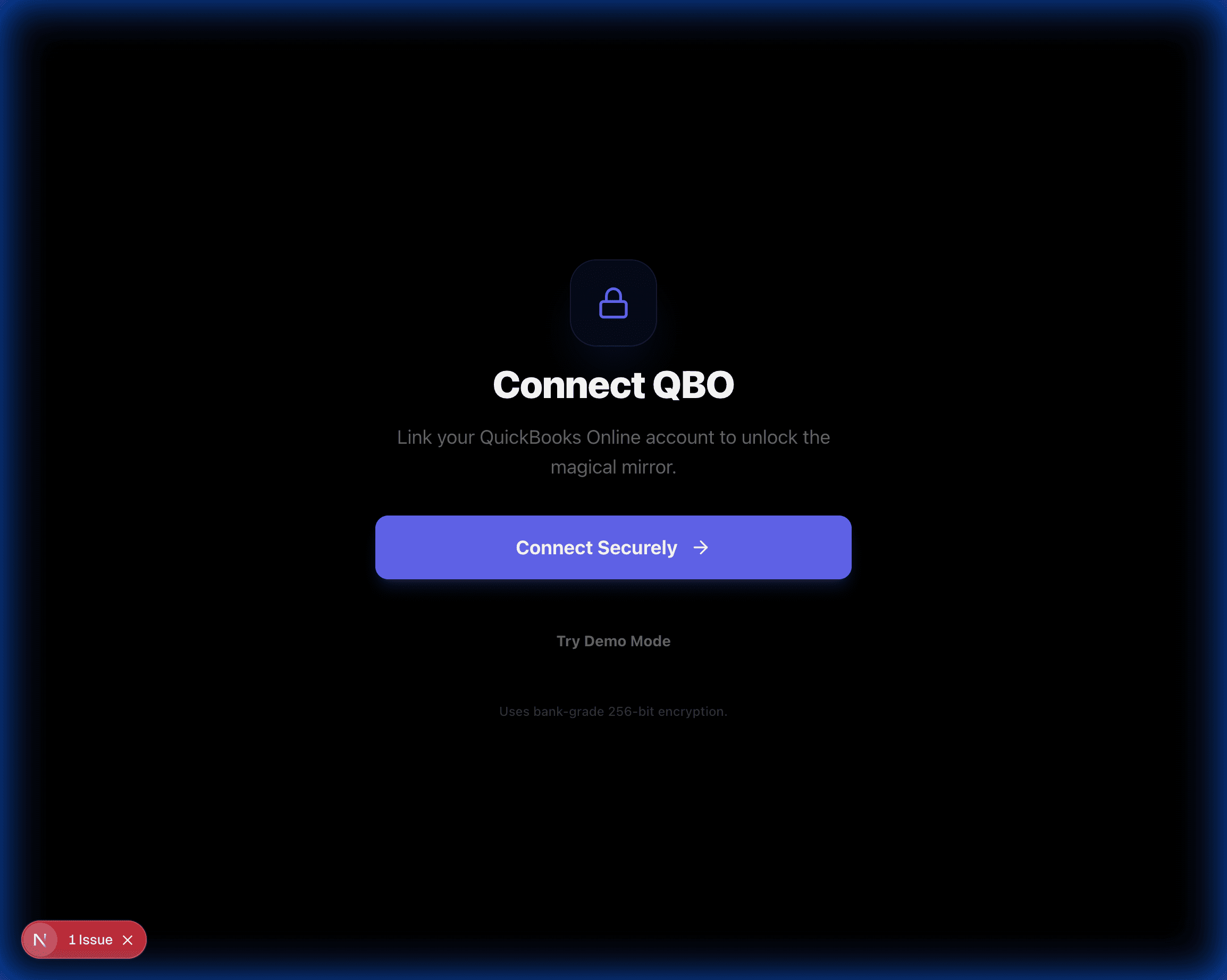
Grant Secure Access
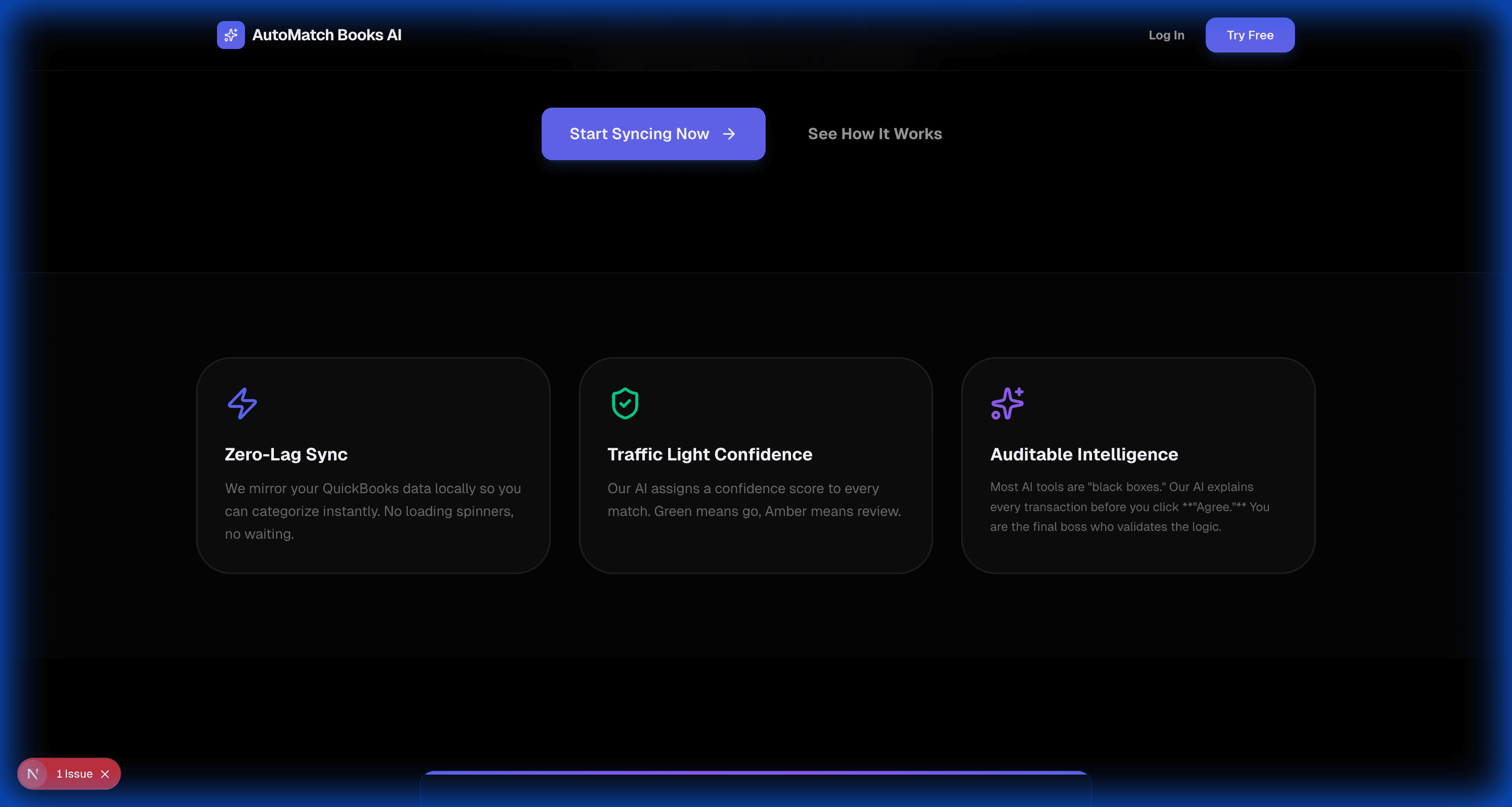
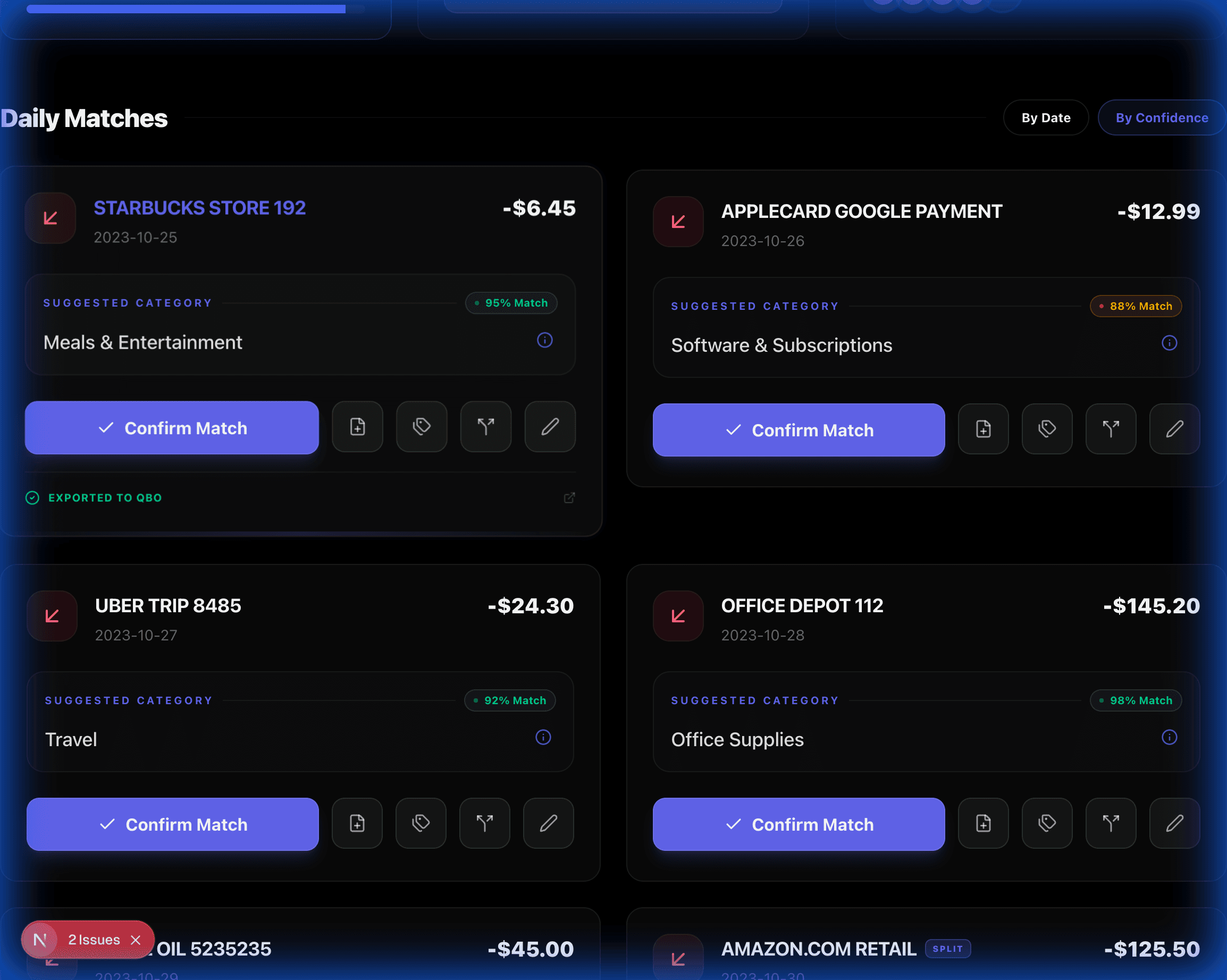
View Your Feed
Inspect AI Reasoning
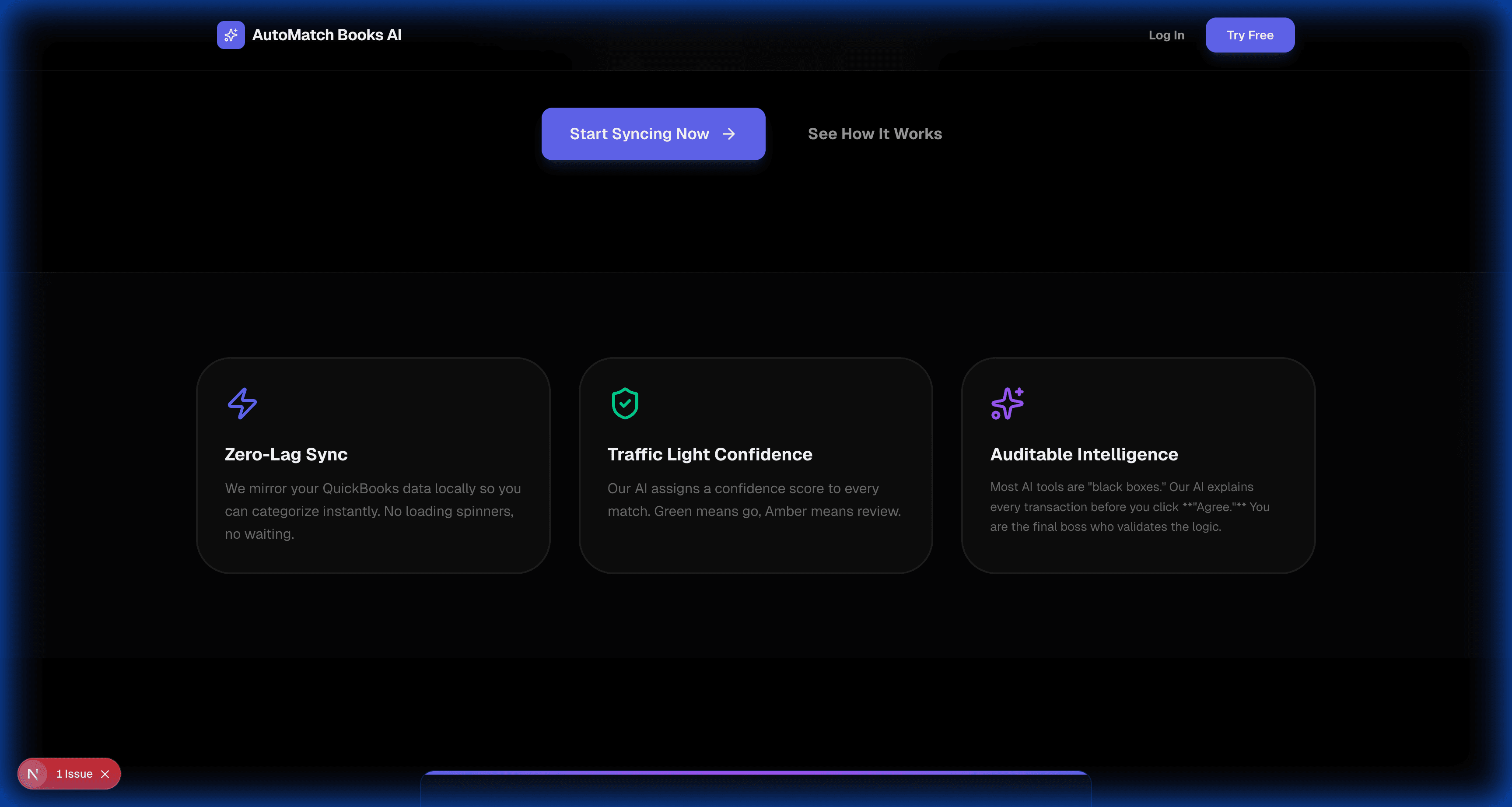
Become the 'Final Boss'
Master the Tag System
Advanced Analytics
Split a Transaction
Receipt Mirroring
Satisfying Haptics
Verify Export Status
Log Out Safely
Experience the future of financial clarity.